How do I update SourceAnalytix (and what is a downgrade)?
In short: For now, SourceAnalytix is only distributed through the "latest" (beta) repository, not through "stable". Admin therefore only shows an update if the "latest" repository is active in the ioBroker system settings. You then update like any other adapter on the "Adapters" tab. Your states and settings are kept.
SourceAnalytix is missing from the stable repository entirely (checked on 13 November 2026). That is not a problem with your installation. SourceAnalytix only moves to the stable repository after a test phase. After that, you also get updates with "stable".
In Admin, open the system settings and, in the "Repositories" section, select the "latest" (beta) repository as the active one.
Open the "Adapters" tab and refresh the adapter list.
Click the update button for SourceAnalytix.
Then check on the "Instances" tab that the instance is running, and check the log to see that it started without errors.
From the console, use iobroker upgrade sourceanalytix. This also only works with a repository that contains SourceAnalytix, so today only with "latest". You install a specific version with iobroker upgrade sourceanalytix@0.6.1. Write the version number without a leading "v".
IMPORTANT
Since v0.6.0, SourceAnalytix needs Node.js 22, js-controller 6.0.11 and Admin 7.8.23 or newer. From v0.7.0, Admin 8.0.0 or newer is required, because the instance settings are built on it. If one of these requirements is older, ioBroker doesn't offer the update or the installation fails. See Requirements.
All values are stored as states and objects in ioBroker. An update doesn't change them. When you update to v0.6.0 or newer, this also applies:
The "Technical ID", which is the folder name under sourceanalytix.0, stays the same. SourceAnalytix enters the previous ID as the output ID in the datapoint's settings.
The rounding that applied until now is saved once per datapoint. If the instance defaults change later, existing datapoints keep their rounding.
New states for prices and price history appear under sourceanalytix.0.priceDefinitions, priceHistory and basicPriceHistory.
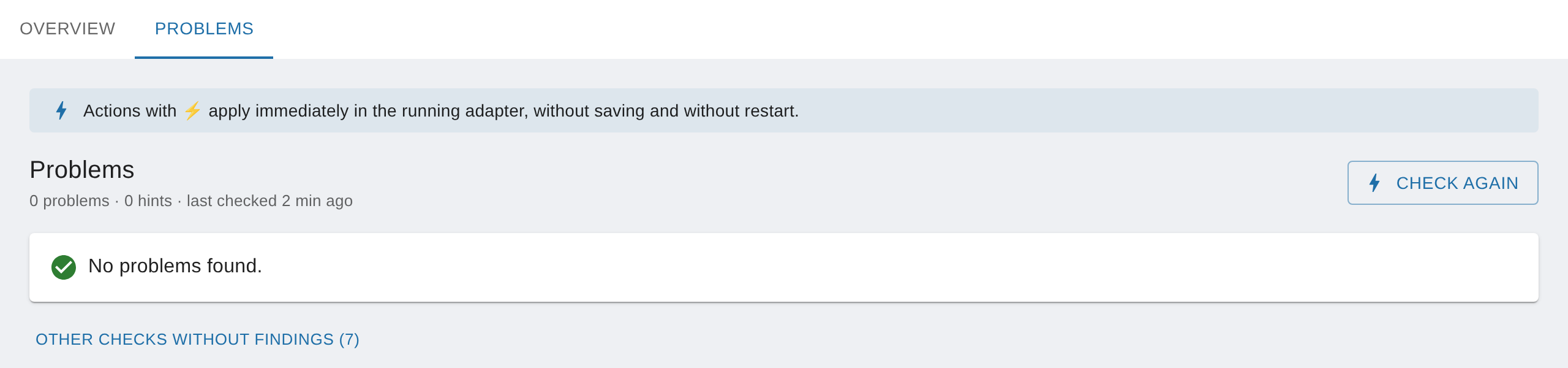
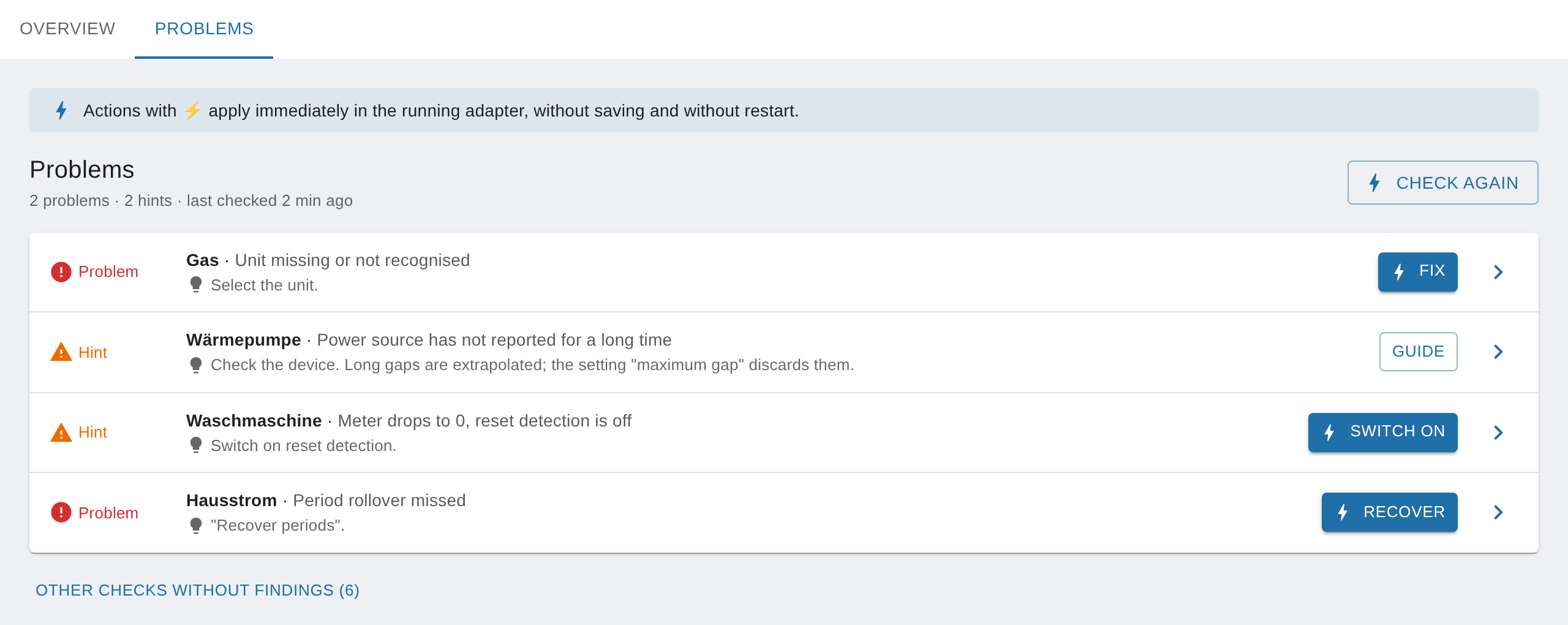
From v0.7.0: After the update, all your existing sources are listed on the "Overview" tab of the instance settings, with their existing settings. You don't have to set anything up again. Then check the "Problems" tab once. It shows, for example, unsuitable start values or a missed period rollover, with a suggestion on how to fix it (#1269).
Wrong repository: If "stable" is active, SourceAnalytix doesn't show up there with a new version. Switch to "latest" as described above.
Installed from GitHub: If you installed SourceAnalytix directly from GitHub via the cat icon, Admin shows no update for that installation. Install the version you want from the "latest" repository over it, and you get updates again.
The part after the hyphen marks a pre-release for testing (alpha, beta). The version without a suffix is newer than any of its pre-releases: 0.4.8 is newer than 0.4.8-beta.0. Only install a pre-release if the developer asks for testers, and back up first.
A downgrade installs an older version over the existing one. You only need it if a new version has a bug on your system.
Make a backup.
Switch on expert mode on the "Adapters" tab.
For SourceAnalytix, choose "Install a specific version" and pick the version you want.
Alternatively, use the console, again with the "latest" repository active: iobroker upgrade sourceanalytix@<version>, for example iobroker upgrade sourceanalytix@0.6.1.
WARNING
An older version doesn't know settings that only a newer one introduced. If you go back below v0.6.0, for example, SourceAnalytix doesn't know custom output IDs. If you changed one, the older version writes the values under the old ID again. If in doubt, restore the backup instead of just switching versions.
From v0.6.2: When you update to v0.6.2, old valueAtDeviceInit entries stay in the datapoint settings. SourceAnalytix no longer reads them, and you don't have to do anything (#1263).
How do I switch off a datapoint or remove sources and states?
In short: From v0.7.0, open the source in the instance settings and choose one of two actions under "Actions". "Deactivate" stops SourceAnalytix for this source. All values are kept, and you can activate it again at any time. "Delete data" removes the source's folder with all values and years, plus the SourceAnalytix settings on the datapoint, for good.
Under "Instances", open the settings of the SourceAnalytix instance, then open the source on the "Overview" tab.
Under "Actions", in the "Deactivate" row, click the "Deactivate" button. It applies immediately, without a restart.
In the overview, the source now has the status "Deactivated". Its states stay in place but are no longer updated.
You can switch the source back on in the same place with "Activate". SourceAnalytix then carries on calculating with the stored settings.
How to delete the data of a source (from v0.7.0)
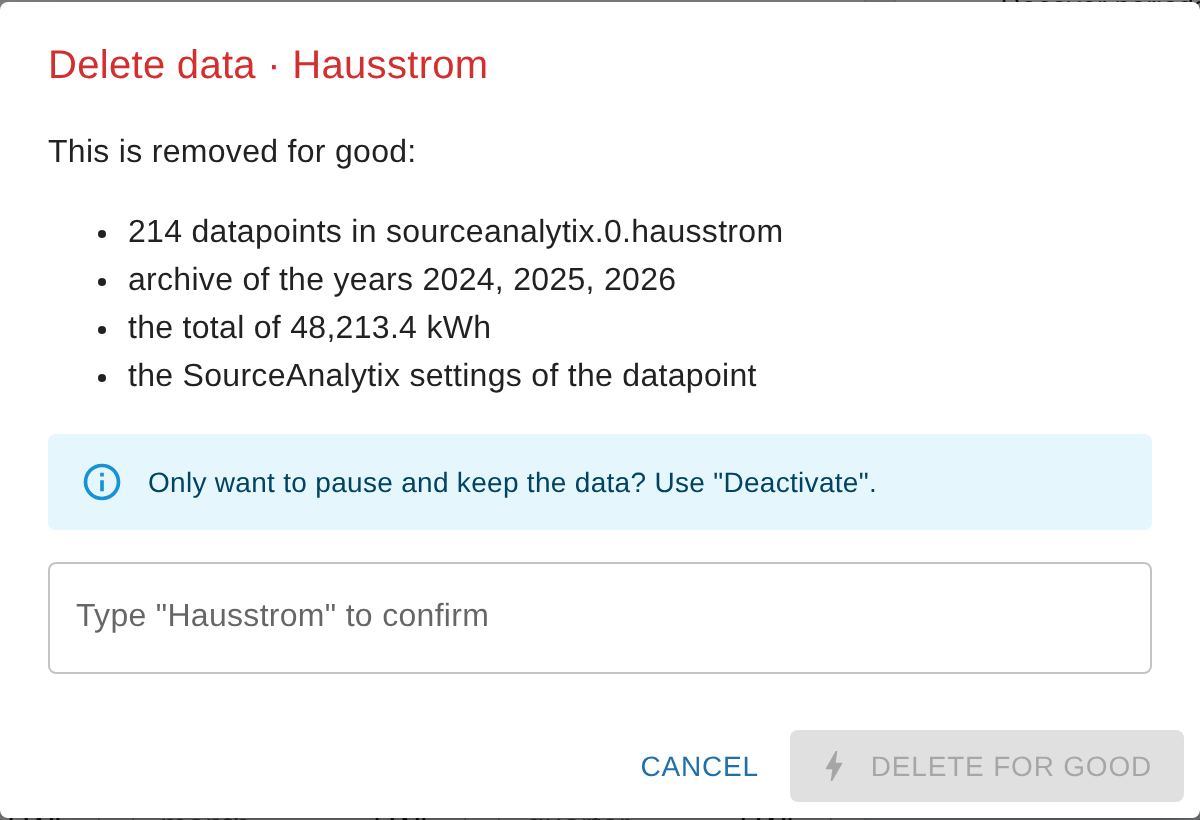
Open the source as above and, in the "Delete data" row, click "Delete".
The dialog shows what will be removed: the number of datapoints in the folder, the archive of the years, the total and the SourceAnalytix settings on the datapoint.
To confirm, type the name of the source and click "Delete for good".
CAUTION
"Delete data" can't be undone. The total, start values and all years are gone afterwards. Make a backup first if you might still need the values, and use "Deactivate" if you only want to pause.
Both actions need a running instance. If it is stopped, the instant actions are disabled.
If you activated many datapoints by accident, it is quicker to switch them off on the "Objects" tab. Select the datapoints, open their shared settings with the wrench icon, and untick "enabled" under sourceanalytix.0. The source folders stay in place. You can then delete them one by one with "Delete data" or on the "Objects" tab.
From v0.7.0: The custom settings dialog only has the "enabled" checkbox now. You can no longer change other settings there, such as the price definition or threshold, for several datapoints at once. You set them for each source in its detail view (#1286).
If you delete the source datapoint itself, for example because you removed a device, SourceAnalytix switches the source off on its own. The log says "Source state … was deleted; SourceAnalytix disabled it while retaining calculated history". The calculated values are kept.
From v0.7.0: The "Problems" tab reports such a source as "Datapoint no longer exists" and suggests "Deactivate or delete the data". A folder that no longer has a datapoint appears in the overview as "Folder without datapoint" and can be removed there with "Delete data". Transferring the data to a new datapoint is planned (#1271).
If you just don't want certain states any more, such as the quarters, switch the option off on the "Main settings" tab of the instance settings. SourceAnalytix deletes the matching states at the next start. States you delete by hand, however, it creates again as long as the option and the source are active.
Up to v0.6.x: The only way to switch a source off was the "enabled" checkbox in the datapoint's SourceAnalytix settings ("Objects" tab, wrench icon). There was no action for deleting. You deleted the folder under sourceanalytix.0 by hand on the "Objects" tab after switching the source off.
Where is the data, how do I back it up and how do I move it?
In short: SourceAnalytix has no database of its own. All values are stored as normal objects and states in ioBroker, and each source's settings are in its datapoint's object. A full ioBroker backup, for example with BackItUp, therefore contains everything. To move to new hardware, restore this backup on the new system, but not shortly before midnight.
Always back up the whole ioBroker system with objects and states. A backup of just the sourceanalytix.0 folder is not enough, because the start values and offset are stored on the source datapoint. Without them, the total no longer matches the meter after a restore. If ioBroker runs with Redis, include the Redis backup too.
Don't plan the move shortly before midnight, so that no period rollover falls into the time when no system is running.
Make a full backup on the old system.
Install ioBroker and SourceAnalytix on the new system (see Installation) and restore the backup.
Start the instance. If it missed a day, week or month rollover, it catches up once per source at startup.
On the "Problems" tab of the instance settings, check that there are no findings, and compare the total with your meter (from v0.7.0).
If the total differs from the meter, align it with the action "Align meter reading", see Correcting wrong values.
WARNING
Exporting just the object tree gives you the structure but no values. Creating the same sources on the new system doesn't replace the restore either: SourceAnalytix then starts with new start values.
If the source datapoint gets a different ID on the new system, for example because you connect the devices with a different adapter, SourceAnalytix treats it as a new source with a new folder. The old folder stays as an archive. Transferring the data to a new datapoint is planned (#1271).
From v0.6.2: SourceAnalytix splits the consumption between the last value before midnight and the first one after it between the old and the new day, in proportion to time (#1260). So even if the move does span midnight, not everything ends up on the new day.
How do I start over with a datapoint and clean up old years?
In short: From v0.7.0, you delete the source's data with the action "Delete data" and set it up again with "Add source". SourceAnalytix then treats it like a first activation and starts all periods at 0. You can safely delete the folders of finished years on the "Objects" tab, independently of this.
Deleting just the source's folder is not enough for a fresh start. The start values and offset are stored in the settings on the datapoint, and as long as the source is active, SourceAnalytix creates the folder again at the next start with these values. "Delete data" therefore removes both.
Under "Instances", open the settings of the SourceAnalytix instance, then open the source on the "Overview" tab.
Under "Actions", choose "Delete data", type the name of the source and click "Delete for good". The folder and the settings on the datapoint are then gone.
On the "Overview" tab, click "Add source" and select the same datapoint.
In the "Start values" step, choose "Count from now". All periods then start at 0.
With the first value, the log says "Initiating … for the first time in SourceAnalytix" and "Initialized empty period start values for … from current reading …".
Every year with "Year statistics" switched on gets its own folder sourceanalytix.0.<device>.<year>. Folders of finished years are pure history and can be deleted.
In Admin, open the "Objects" tab and then sourceanalytix.0.<device>.
Delete the folder of the year you no longer need, for example 2023.
Don't delete currentYear, cumulativeReading or periodMemory, and don't delete the folder of the current year. SourceAnalytix still needs these states. As long as the source is active, it creates them again at the next start anyway.
The action "Recalculate costs from date" only recalculates periods whose states still exist. It skips deleted years.
If you don't want any more weekly or yearly folders in the future, switch off the options "Weeks", "Months" and "Quarters" under "Year statistics" on the "Main settings" tab of the instance settings. SourceAnalytix then deletes the states in the current year's folder and leaves older years alone.
Up to v0.6.x: There was no action for deleting. To start over, you had to switch the source off, delete its folder on the "Objects" tab and also remove the stored start values and the offset on the datapoint. Otherwise the new activation didn't count as the first one. From v0.7.0, "Delete data" does all this in one step.
ioBroker was off at midnight: how do I catch up the day rollover?
In short: Usually you don't have to do anything. For each source, SourceAnalytix remembers which day, week and month it last closed, and catches up on missed rollovers itself at the next start. If the instance keeps running, it also checks every hour whether a rollover is missing. From v0.7.0, you can also trigger the rollover in the instance settings with the action "Recover periods".
At startup: At startup, each source compares the stored status in the state sourceanalytix.0.<device>.periodMemory with today's date. If a day, week, month, quarter or year rollover is missing, it processes it once. The log then says "Processing calendar rollover for …".
Every hour: A safety check catches up on a rollover that the midnight schedule missed even though the instance was running, for example after the computer woke from sleep or the system time was corrected.
When catching up, the previous periods such as 01_previousDay also get the time stamp 23:59:59 of the previous day. If the outage lasted several days, SourceAnalytix still only processes one rollover. 01_previousDay then contains the consumption of the last day before the outage, and the days in between don't get a value of their own.
How to catch up the rollover by hand (from v0.7.0)
Under "Instances", open the settings of the SourceAnalytix instance. If a rollover is missing, the "Problems" tab reports "Period rollover missed" for the affected source, with the button "Recover".
Alternatively, open a source on the "Overview" tab and, under "Actions", in the "Recover periods" row, click "Recover".
"Period rollover recovered for " then appears. Both ways only apply to this one source, the other sources are not touched. If no rollover is missing, nothing changes.
Without the instance settings, use the state sourceanalytix.0.info.recoverPeriods: write true to it (unacknowledged, so ack=false). SourceAnalytix then catches up missed rollovers of all sources and resets the state to false. From a script, use sendTo, either for all sources or with source for just one. The response gives the number of sources:
javascript
// all sourcessendTo('sourceanalytix.0', 'recoverPeriods', {}, result => { log(`Rollover recovered for ${result.recovered} sources`);});// one source only (from v0.7.0), ID of the source datapointsendTo('sourceanalytix.0', 'recoverPeriods', {source: 'shelly.0.SHEM-3#1#.Total.ConsumedPower'}, result => { if (result.error) log(result.message, 'warn');});
If the source is not active, the response is {error: 'sourceNotActive'}.
If a rollover is already running, the call is skipped and the response is 0.
Where the consumption during the outage is booked
From v0.6.2: For meter readings, SourceAnalytix splits the consumption between the last value before midnight and the first value after it in proportion to time. The share that falls into the old day goes to yesterday, the rest to the new day. Up to v0.6.1, everything landed on the new day (#1260).
An example: the last value arrives at 22:00, the next one after the restart at 2:00, and the meter counted 4 kWh in between. SourceAnalytix then books 2 kWh to yesterday and 2 kWh to today.
This doesn't apply to power sources (W). From v0.6.2, SourceAnalytix books their energy up to midnight to the old day itself at the rollover, but only if the instance was running at midnight (#1254).
NOTE
The rollover follows the clock of the computer or container that ioBroker runs on. If the time zone is wrong there, SourceAnalytix rolls over at the wrong hour. See Crash or rollover at the wrong time.