VIS, Alexa, Google Home and Apple Home
Is there a ready-made VIS view for controlling WLED?
In short: No, the adapter comes with neither a ready-made VIS view nor its own widgets. You build the controls from the standard VIS widgets and bind them to the states below. Alternatively, you embed the web interface of the WLED device with an iFrame.
The states you bind
All states are under wled.0.<device>. For a device with one segment, use segment 0.
| Control | Widget | State | Value |
|---|---|---|---|
| On/off | Switch | on | true / false |
| Brightness | Slider | bri | 0 to 255 |
| Color | Color picker | seg.0.col.0_HEX | #RRGGBB |
| Effect | Drop-down list | seg.0.fx | Number; the names come from the state |
| Palette | Drop-down list | seg.0.pal | Number; the names come from the state |
| Effect speed | Slider | seg.0.sx | Number |
| Effect intensity | Slider | seg.0.ix | Number |
| Preset | Buttons or number field | ps | Preset number |
How to build the view
- Create a new view in VIS.
- Add a switch and bind it to
wled.0.<device>.on. - Add a slider for
wled.0.<device>.briwith minimum 0 and maximum 255. If you want 0 to 100 %, bind a percentage alias instead (see below). - Add a color picker and bind it to
wled.0.<device>.seg.0.col.0_HEX. - Add two drop-down lists for
seg.0.fxandseg.0.pal. The names of the effects and palettes are stored in the state itself, so you don't have to type them in. - For presets, add one button per preset that writes the preset number to
ps. - Check the view in runtime mode: every change must be visible on the strip.
IMPORTANT
For the color picker, use the HEX state seg.0.col.0_HEX, not the RGB state seg.0.col.0. The RGB state expects text like [255,0,0], which a color picker doesn't deliver.
Up to v0.9.2: If you write a HEX value, the adapter sets the white channel of RGBW strips to full, and the tertiary color seg.0.col.2_HEX has no effect.
From v0.9.3: A 6-digit HEX value (#RRGGBB) leaves the white channel unchanged. With an 8-digit value (#RRGGBBWW) you set the white channel as well (#907). The tertiary color 2_HEX takes effect (#906).
TIP
The adapter doesn't provide a picture per preset. You solve that in VIS: create an image widget for each preset and make it visible only when ps has the matching number.
Embed the WLED web interface
If you want all WLED functions in VIS, embed the device's web interface with an iFrame widget. As the address, enter http://192.168.x.y, the IP of your WLED device. The controls then work directly on the device, not through the adapter.
See also:
- How do I use brightness as a percentage (0 to 100), for example for Alexa?
- How do I switch WLED presets via the state (ps) in VIS, Blockly or a script?
- Which state do I use for the color picker in VIS, and how do I show the current color?
- Why does the VIS 2 editor freeze when I pick seg.0.fx in the drop-down?
Which state do I use for the color picker in VIS, and how do I show the current color?
This section is still being written.
How do I choose the effect and the palette in VIS as a drop-down?
This section is still being written.
How do I connect WLED to the iot adapter and switch effects, presets and color via Alexa or Google Home?
In short: The adapter doesn't create a ready-made lamp for the iot adapter. You build one yourself with an alias device made of on, bri and seg.0.col.0_HEX, and give it a smart name in the iot adapter. You switch presets and effects via a helper state that Alexa or Google Home triggers like a scene.
The adapter's states have suitable roles: on is switch.light, bri is level.brightness with 0 to 255, and the color seg.0.col.0_HEX is level.color.hex. However, the iot adapter only recognises a light when these parts sit together in one structure. You create this structure yourself with an alias.
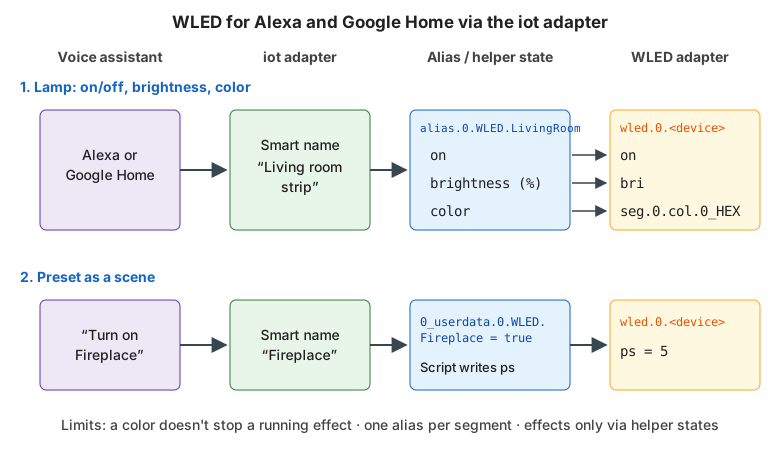
On/off, brightness and color as a lamp
In Admin, open the "Objects" tab and create a folder for the lamp under
alias.0, for examplealias.0.WLED.LivingRoom.Create three states in it:
State in the alias Role Type Target ( alias.id)Conversion onswitch.lightbooleanwled.0.<device>.onnone brightnesslevel.dimmer, 0 to 100, unit%numberwled.0.<device>.briRead Math.round(val / 2.55), writeMath.ceil(val * 2.55)colorlevel.color.rgbstringwled.0.<device>.seg.0.col.0_HEXnone Open the iot adapter's tab, find the alias device there and give it a smart name, for example "Living room strip".
Let Alexa or Google Home search for new devices.
Test it with "Living room strip to 50 percent":
wled.0.<device>.brishould jump to128.
How to create the percentage alias in detail is described under How do I use brightness as a percentage (0 to 100), for example for Alexa?.
TIP
If you only need on/off and brightness, a smart name directly on wled.0.<device>.bri is often enough. Because bri has a minimum and a maximum, the iot adapter converts percentages to 0 to 255 by itself.
Presets and effects as a scene
Voice assistants don't know about WLED presets or effects. So for each preset you create a helper state that Alexa or Google Home switches on, and a small script writes the preset number to ps.
Create a state of type
booleanwith the rolebutton, for example0_userdata.0.WLED.Fireplace.Give it a smart name in the iot adapter, for example "Fireplace".
Create this script in the JavaScript adapter. Replace the
5with the number of your preset in WLED:json({ id: '0_userdata.0.WLED.Fireplace', val: true, ack: false }, () => { setState('wled.0.<device>.ps', 5); });Say "Alexa, turn on Fireplace".
wled.0.<device>.psshould jump to5.
In the same way you can write an effect instead of ps, for example setState('wled.0.<device>.seg.0.fx', 9). How writing ps works in detail and what to watch out for is described under How do I switch WLED presets via the state (ps) in VIS, Blockly or a script?.
NOTE
WLED itself has its own Alexa integration that works without ioBroker. It runs directly in the WLED firmware and has nothing to do with the adapter.
Limits
- A color doesn't stop an effect. A color command only writes the colors of the segment. If an effect is running, it keeps running with the new color. If you want a steady color, select a preset with a single-color effect first.
- One alias per segment. The alias device above only controls segment
0. For other segments you need separate aliases onseg.<segment>.on,seg.<segment>.briandseg.<segment>.col.0_HEX. - Effects and palettes only via helper states. There is no direct selection by voice.
- No feedback for scenes. The helper state doesn't show whether the preset is still active.
Up to v0.9.2: If the iot adapter writes a color to an RGBW strip, the adapter switches the white channel to full.
From v0.9.3: A 6-digit color (#RRGGBB) leaves the white channel unchanged (#907).
See also:
- Is there a ready-made VIS view for controlling WLED?
- How do I control the white channel (RGBW, SK6812, warm white)?
How do I get a color picker for WLED in Apple Home (Yahka)?
This section is still being written.